


YouTube Create: Video editor
4.71.70K Reviews
App Specs
- Version
- Varies with Device
- Updated On
- License
- Free
- Downloads
- 10,000,000+
- Developer
- Google LLC
- Categories
- Video Players & Editors
- Platform
- Android, iOS
Screenshots
 Analysis by AppCompare
For a quick edit between errands, the network can matter as much as the timeline. Music choices, account-related steps, and the eventual upload all make a connected phone feel more convenient, while a weak signal can turn a simple finishing task into a wait. I see YouTube Create as a practical mobile editor when the goal is to shape footage for YouTube without carrying a laptop, but it works best when I plan the edit around where I have a reliable connection.
When a connection helps—and when it gets in the way
Editing is not one single network task. Choosing clips and arranging a rough cut are different from browsing a music library or sharing a finished video. I’d separate those stages: do the creative decisions first, then handle anything that depends on online access when the connection is steady. That keeps a brief signal drop from interrupting the whole process.
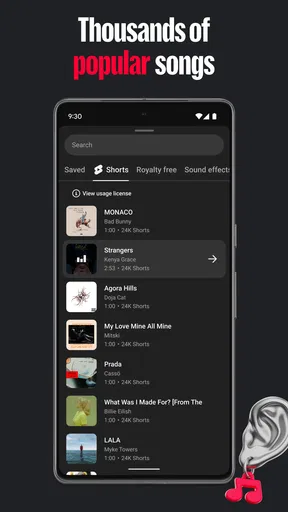
The built-in music library is useful when I want a track without hunting through unrelated sources, but it also makes connectivity worth thinking about before I start. If I’m preparing a video on a train or in a crowded venue, I would not leave music selection and final checks until the last minute. I’d make the structural edit first, then revisit the soundtrack when browsing feels responsive.
A connected workflow is especially convenient for someone who already posts to YouTube and wants fewer handoffs between editing and publishing. It is less compelling if my process depends on moving large files among several services, collaborating through shared project files, or finishing every detail away from a dependable network. In those cases, I’d compare it with a desktop editor or another mobile tool built around that particular workflow rather than assuming one app will cover every need.
Made for a phone, with phone-sized trade-offs
The small-screen layout makes sense for trimming a few clips and adding a transition, but I would not treat a phone timeline as a replacement for a large editing workspace. Precise work can take more taps, and a crowded sequence is harder to inspect when clips and controls compete for limited screen space. My practical tip is to settle the story before polishing: pick the strongest moments, arrange them, and only then spend time on effects or fine adjustments.
That approach suits a daily creator who captures a short cooking step, a quick product demonstration, or a few moments from a local event. For example, after filming a weekend market, I could choose a handful of clear shots, trim the pauses, add a transition where the scene changes, and use a suitable track before sharing. The value is not that a phone suddenly becomes a full studio; it is that a small, focused edit can happen while the footage is still fresh in my mind.
I’d be more cautious with long interviews, dense multi-scene stories, or work that needs careful audio balancing and detailed color decisions. Those jobs benefit from the larger display and deeper controls of a desktop editor. YouTube Create’s appeal is strongest when speed and approachability matter more than exhaustive control.
Worth Reading Before You Choose

Baby Panda World Brings Quick Play to Modern Phones, but Its Game Library Feels Busy

ESPN’s Live Game View Makes Following Close Games Easier

QuizzLand Review: A Good Fit for Short Trivia Breaks, Not Every Player

Basketball Stars: Multiplayer Is Fast, but Can It Recover When Matches Go Wrong?

WEBTOON Turns Phone Updates Into a Better Reading Routine

Link to Windows Runs on Shared Habits, Not Social Feeds
Recovering from interruptions without losing the thread
Mobile editing happens alongside calls, low battery warnings, crowded storage, and apps competing for attention. I try to avoid making the last edit of an important video while rushing out the door. Instead, I’d make a rough cut when I have a few calm minutes, review it once, and leave the export or upload for a moment when the phone is less likely to be interrupted.
If an export or sharing step stalls, the first useful move is to check whether the connection is stable and whether the phone has enough room to work with the footage. I would avoid repeatedly tapping export while the app is still processing; that can create confusion about which attempt is current. A more dependable routine is to pause, inspect the project, then try again once the phone and network are ready.
For anything I care about keeping, I also treat the original camera clips as the safety copy until I know the finished version is where I need it. That habit is useful in any mobile editor, but especially when editing and publishing happen in separate bursts. It prevents a rushed cleanup from turning a temporary upload problem into a lost-footage problem.
Keeping mobile data and time under control
Video files can be demanding to move, so I would reserve uploads for Wi-Fi when that is practical, particularly after filming several takes or choosing a higher-resolution export. The app’s export choices give me room to match the result to its destination: a casual social post may not need the same output as a video I want to keep looking sharp on a larger screen. I’d decide that before exporting, rather than making multiple versions by trial and error.
There is also a time cost to editing away from home. Browsing options, previewing changes, and waiting for a finished file can drain a short break, even if each step is straightforward. I get more from a mobile session by arriving with a clear idea of the story and limiting myself to a few purposeful edits, instead of scrolling through every effect because it is available.
Who will get the most from it?
This is a sensible option for new creators who want approachable tools, YouTube-focused users who prefer to edit on their phone, and anyone turning a small collection of clips into a tidy short video. It is also appealing if I would rather learn by trying a clear timeline than begin with a complex professional interface. People who need collaboration, intricate audio work, or detailed control over a long project should look at more full-featured alternatives.
Compared with a general-purpose phone editor, YouTube Create feels most relevant when the destination is YouTube and its built-in creative choices fit the job. A broader mobile editor may be a better match for someone who regularly makes content for several platforms or wants a different set of controls. Desktop software remains the stronger choice for precision-heavy projects. I would pick based on the work I actually do, not on the assumption that more tools always make a better edit.
It is a free video editing app from Google LLC, with a Teen age rating, and it is still described as being in beta. That beta status matters to my expectations: I’d approach it as a convenient creator tool rather than the only place to keep a complicated production. Its average rating is 4.0 from around 26,000 ratings, with roughly 1,100 written reviews and over 5 million installs, which gives a sense of its audience without telling me whether it will suit every workflow.
Getting Started with YouTube Create
First off, downloading YouTube Create was a breeze. Available on both Android and iOS, it’s perfect for those who want to edit videos directly from their phones without needing a ton of technical know-how. Once you’ve installed the app, you’re greeted with a straightforward interface that’s super easy to navigate, even if you’re a newbie.
The app starts with a quick tutorial, which is great because it walks you through the basics without overwhelming you with too much info. It’s clear that the developers wanted to make sure that anyone could pick it up and start creating right away.
Features You'll Love
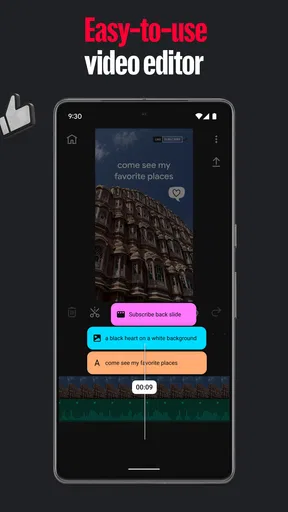
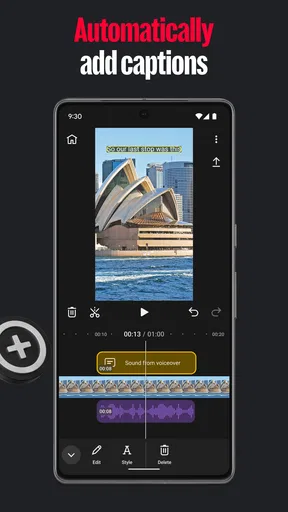
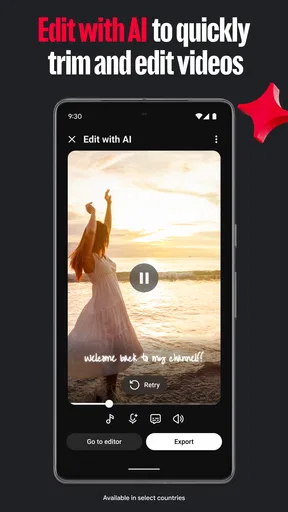
Now, onto the good stuff. One of the standout features of YouTube Create is its intuitive editing tools. You get a timeline that lets you drag and drop clips, trim footage, and even add transitions. It's like having a mini editing suite in your pocket. You don't need to worry about fiddling with complex settings; everything is laid out in a way that just makes sense.
Another cool feature is the built-in music library. You can add royalty-free tracks to your videos, which is a lifesaver if you're worried about copyright issues. Plus, it’s organized by mood and genre, so finding the right track is quick and easy.
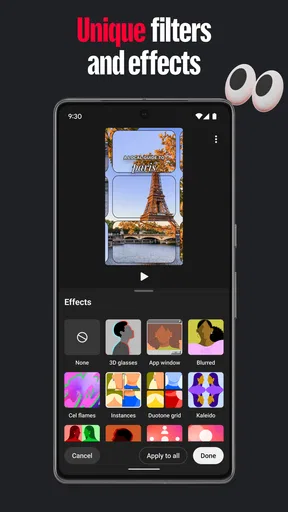
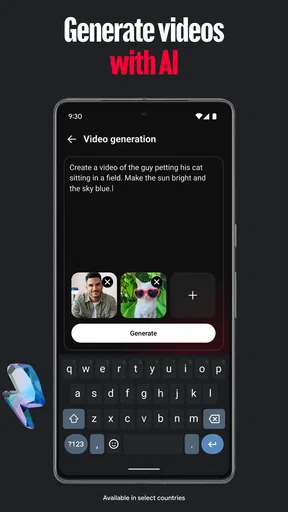
For those who love to add a bit of flair to their videos, YouTube Create has a bunch of filters and effects. Whether you want to make your video look like an old film reel or add some funky animations, there’s something here for everyone.
Performance and User Experience
Performance-wise, the app runs smoothly. I didn’t experience any lags or crashes, even when editing longer clips. The app feels stable, which is crucial when you’re trying to get your editing done on the go. The rendering process is also pretty quick, so you won’t be left twiddling your thumbs waiting for your masterpiece to export.
One thing I particularly appreciated was the app's ability to export videos in various resolutions. Whether you’re looking to post something quick on social media or upload a high-quality video to YouTube, you’ve got options.
Final Thoughts
All in all, YouTube Create is a fantastic tool for anyone looking to edit videos on their mobile device. It’s user-friendly, packed with features, and best of all, it doesn’t require a steep learning curve. Whether you're a seasoned creator or just starting out, this app makes video editing accessible and fun.
If you’re ready to take your video editing game to the next level, I’d definitely recommend giving YouTube Create a try. It's a game-changer for on-the-go editing and perfect for those spontaneous moments of creativity.
So, what are you waiting for? Dive into the world of video editing with YouTube Create and start crafting your visual stories today!
My connectivity verdict
I’d recommend this app to someone who wants to turn phone footage into a straightforward YouTube-ready edit and is comfortable doing the final sharing when a connection is available. The practical sweet spot is a short, purposeful project: choose the story, trim the clips, add only the effects that help, and leave network-dependent steps for a better moment.
I would skip it as my main editor if I needed a highly controlled production pipeline, frequent collaboration, or a reliable substitute for desktop editing. For everyone else, its accessible mobile approach and focused toolset make it worth trying, as long as I keep the beta context and the realities of phone-based editing in mind. The best reason to use it is convenience; the best reason to choose something else is needing more control than a compact, mobile workflow can comfortably provide.
Pros
- Intuitive editing interface for beginners.
- Wide range of music and effects available.
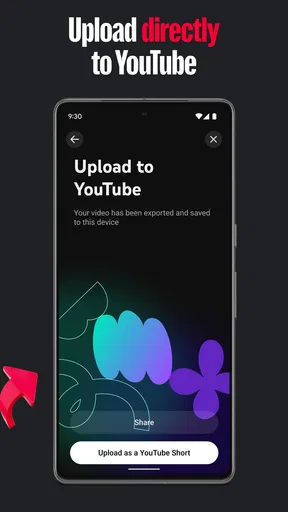
- Seamless integration with YouTube platform.
- Quick export and upload options.
- Supports high-quality video resolutions.
Cons
- Limited advanced editing features.
- Requires stable internet connection.
- Occasional in-app advertisements.
- Some features locked behind paywall.
- No offline editing capabilities.
FAQs for YouTube Create: Video editor
What is YouTube Create and how does it differ from the regular YouTube app?
YouTube Create is a dedicated app designed specifically for content creators to easily produce, edit, and manage their videos. Unlike the regular YouTube app, which focuses on video consumption, YouTube Create offers powerful editing tools, templates, and effects to enhance your content before uploading it to your channel.
Is YouTube Create free to use, or are there any hidden costs?
YouTube Create is free to download and use. However, there might be in-app purchases or premium features that require payment. These could include advanced editing tools or exclusive content packs. It's advisable to review the app's store listing for any specific pricing details before downloading.
What features does YouTube Create offer for video editing?
YouTube Create provides a robust suite of video editing tools, including trimming, merging, and adding music or sound effects. Users can also apply filters, transitions, and text overlays. The app aims to simplify the editing process while still offering enough flexibility for more experienced creators to produce high-quality content.
Can I upload videos directly to my YouTube channel using YouTube Create?
Yes, YouTube Create allows you to upload videos directly to your channel once you’ve finished editing. The app streamlines the uploading process by integrating with your YouTube account, enabling you to add titles, descriptions, and tags, ensuring your content is immediately ready for your audience.
Is YouTube Create suitable for beginners, or is it more for advanced users?
YouTube Create is designed to cater to both beginners and advanced users. Its intuitive interface makes it easy for newcomers to start editing quickly, while advanced features offer more experienced creators the tools they need to refine their projects. The app includes tutorials and tips to help users of all levels.


